No customer account required
Customers start a session from your download page. There is nothing to sign up for and no permanent software left behind once the session ends.
Customers need help now, not after creating an account or reading instructions. With SimpleHelp, they download your support app, describe the problem and join your queue. Your technician takes it from there.
The customer visits your support page and runs the SimpleHelp customer app. It connects to your server and places them in a queue, where an available technician picks up the request, chats with them and, with their permission, views or controls their screen.
Make getting help as easy as possible for the customer, and give your technicians everything they need on the other side.
Customers start a session from your download page. There is nothing to sign up for and no permanent software left behind once the session ends.
Requests arrive in the Technician Console or WebTech. Route them to the right group, see waiting customers at a glance and pick up the next one.
Customise the app name, logo, colours, download page and translations so customers recognise your service and trust the connection.
Chat during the session, transfer files and check diagnostics. If the customer needs ongoing care, install the Remote Access Service for future unattended work.
A customer calls because their accounting software will not start. Your technician sends them to the support page; they run the app and appear in the queue. The technician connects, reads the error, transfers an updated installer and confirms the application opens before the call ends.
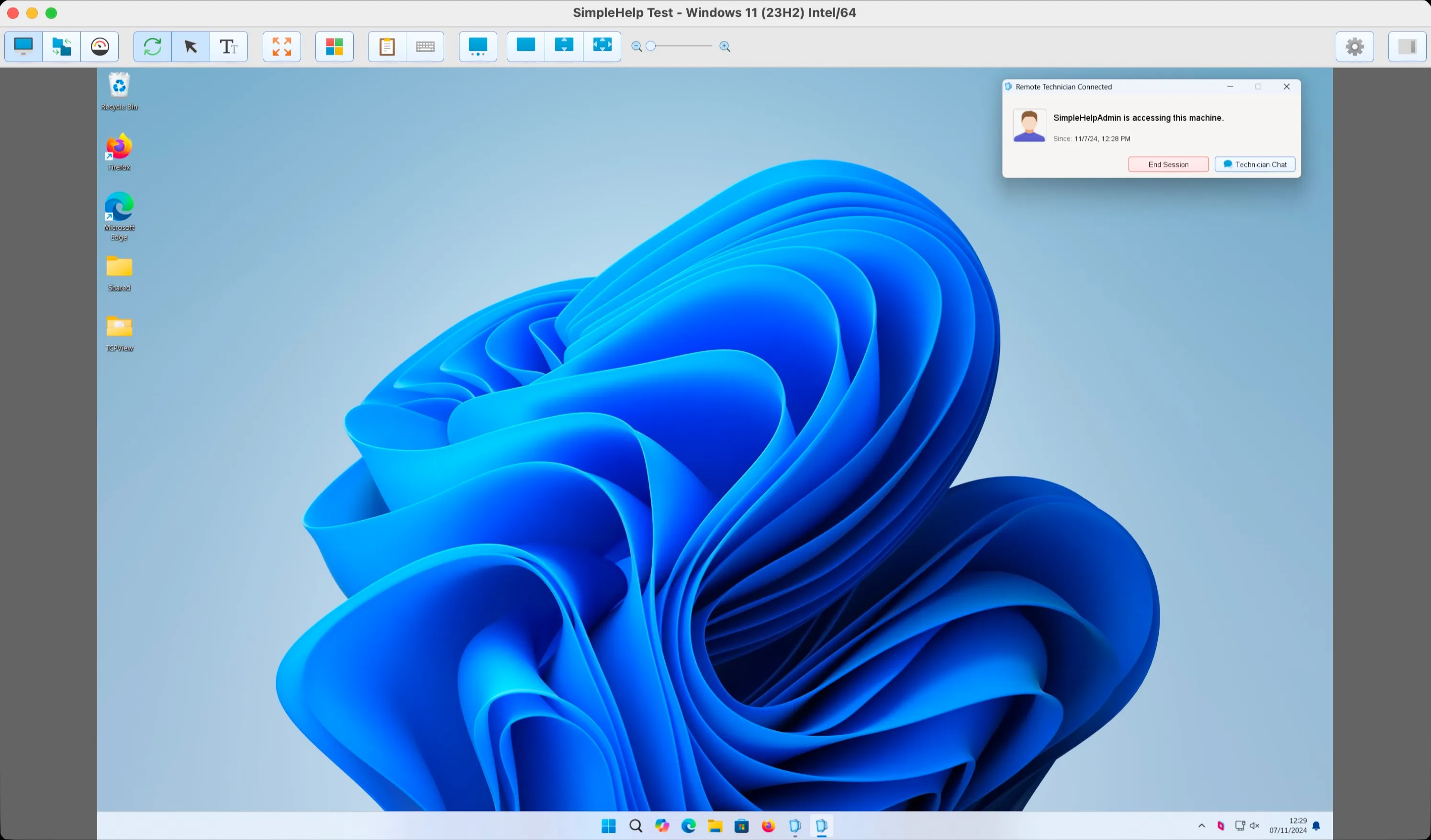
Start with a few test devices and a workflow your team knows well.
The customer runs a small support app from your download page to start the session. It does not need to stay installed afterwards unless you choose to set up unattended access.
Yes. Customers on Android and iOS can use the SimpleHelp support app for chat and, with their approval, screen viewing. Desktop sessions provide full remote control.
Yes. Your SimpleHelp server can be reached from the internet, so you can support customers wherever they are, using your own domain name and TLS certificate.
Record remote sessions and keep a detailed history of who connected, when and what they did. SimpleHelp stores recordings and logs on your own infrastructure.
ExploreSign technicians in with Active Directory, LDAP, Entra ID, OpenID Connect or RADIUS. Manage remote access centrally and add MFA with SimpleHelp.
ExploreWake sleeping or powered-off computers remotely, then connect. SimpleHelp sends Wake-on-LAN packets through an online machine on the same network.
ExplorePut SimpleHelp to work with your own machines and technicians. Every feature, free for 30 days.
Start Free Trial

