Why Chrome Flags Your Support Download
Why Chrome marks remote support installers "suspicious", what SimpleHelp already does about it, and the practical steps that reduce warnings for your users.
Published Last updated

K. Bramble
Why Chrome marks remote support installers "suspicious", what SimpleHelp already does about it, and the practical steps that reduce warnings for your users.
Published Last updated
You send a customer the link to your support download. A minute later they're back on the phone: "Chrome says it's suspicious. Is this a virus?" Now the first five minutes of the session go on reassurance instead of the actual problem.
The warning is frustrating, but it isn't random, and it usually isn't saying your installer is malicious. This post covers what Chrome's warnings actually mean, why remote support downloads trigger them so often, what SimpleHelp already does about it, and the practical steps that reduce how often your users see them.
In this post
Since 2024, Chrome has used two tiers of download warning, driven by Google Safe Browsing verdicts. The difference matters.
| Warning | What it means |
|---|---|
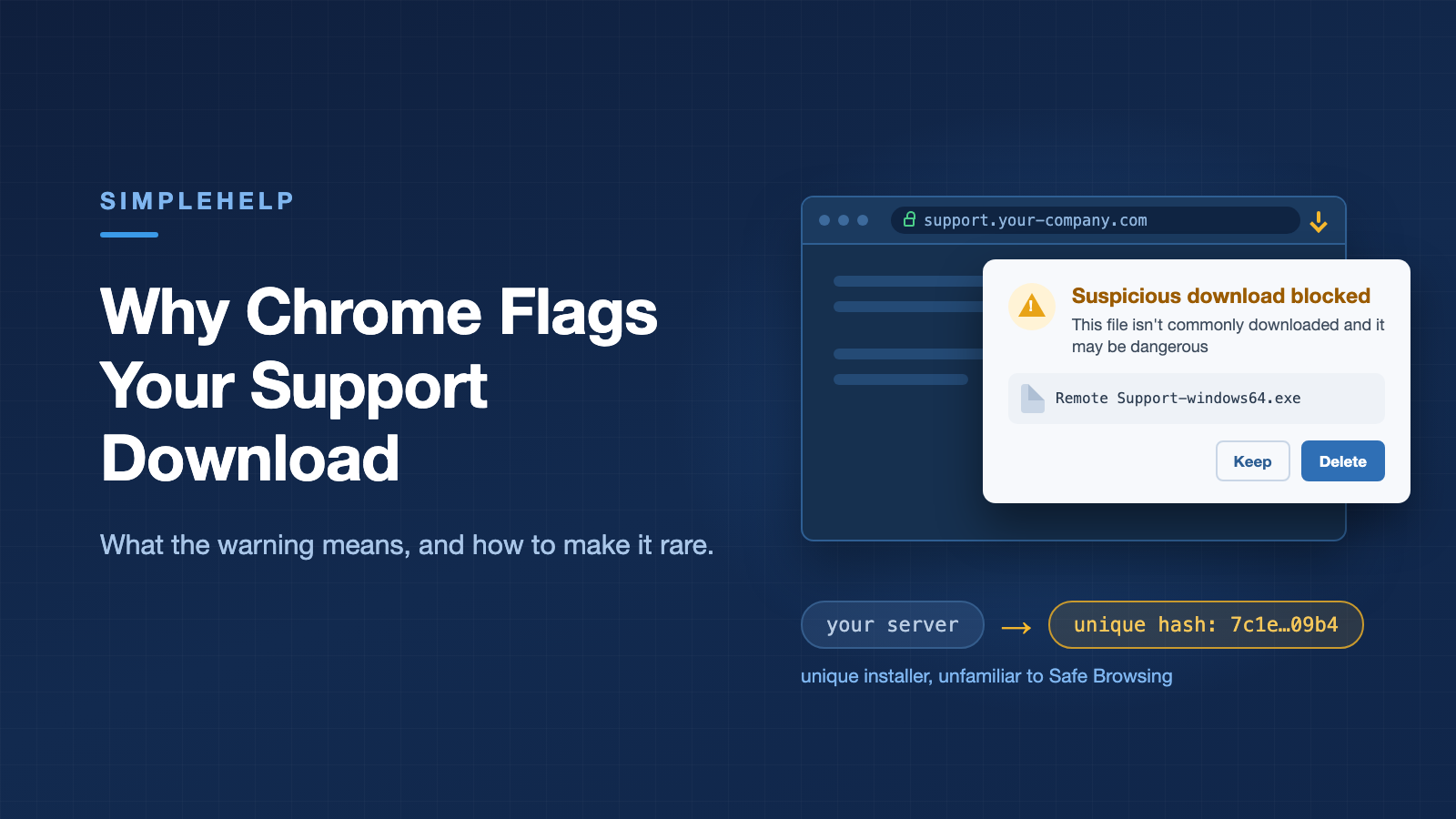
| Suspicious download blocked: "This file isn't commonly downloaded and it may be dangerous" | Lower confidence. Safe Browsing doesn't know the file well enough to call it safe. |
| Dangerous download blocked | High confidence. Safe Browsing believes the file is malware or unwanted software. |
| Insecure download blocked | The file came over plain HTTP, so it could have been tampered with on the way. |
| Unverified download blocked | Safe Browsing is turned off, so Chrome couldn't check it. |
Support installers almost always hit the first one. "Suspicious" here mostly means unfamiliar. Chrome is telling your user it hasn't seen this exact file often enough to vouch for it.
Good to know: If you see Dangerous rather than Suspicious, treat it differently. Check the file, check your server, and don't tell users to click past it until you know why it's there.
When a user downloads a file, Chrome sends Safe Browsing details about it: the file's hash, where it came from, and its code-signing information. Google then judges reputation largely on whether it has seen that file before, and where.
That model favours software where everyone downloads the identical file from the same place. A self-hosted remote support tool is close to the opposite.
Each SimpleHelp installation produces slightly different installers. Your server's URL, its secure identity, your branding and your configuration are all built in. That's what makes the download yours, but it also means your installer's hash is unique. Every update changes it again.
To Safe Browsing, your Remote Support download can look like a brand-new file that only a handful of people have ever downloaded. That's the textbook case for "uncommon". We covered the same effect on endpoint security tools in Security Product Interference and Update Anxiety in SimpleHelp.
Security tools increasingly score the site a file comes from, not just the file. A support domain that's new, rarely visited or reached by raw IP address starts with little or no reputation. We've seen downloads blocked purely because a security product didn't recognise the server's URL. Nothing was wrong with the file itself.
Remote support software does what attackers' tools do: it runs a service, takes control of the screen and runs commands. Some security products have settings that block legitimate but sensitive software categories like remote access and RMM tools. That isn't a false positive in the usual sense. It's a policy someone has chosen, and the person who manages that product needs to review it.
The downloads themselves are digitally signed. Your server assembles each package from SimpleHelp's common code, the operating-system-specific components and your instance's branding and settings, then signs the finished download. The file your users get is properly signed, even though its contents and hash are unique to your server. For release versions, we also send builds to the major antivirus vendors ahead of time.
That helps, but it can't solve this on its own:
The good news: vendors know false positives on legitimate software are their problem to fix, and they're generally quick to act on a report.
This one is entirely in your hands. Chrome warns on executable downloads delivered over plain HTTP, including from private IP addresses. A self-hosted server reached at http://192.168.x.x will trigger "Insecure download blocked" before reputation even comes into it. Chrome now also tries HTTPS by default for all users.

Give your server a proper hostname and a valid certificate. The SSL guide covers the setup.
This is the step that makes the most difference. Download a fresh installer from your server on its current version, and submit that file (or your server URL) to whichever vendor is flagging it.
Once a file or URL is cleared, the fix tends to stick for downloads from that server, not just the one file.
For endpoints you or your clients manage with Chrome policies, you can tell Safe Browsing to trust your support domain:
{
  "SafeBrowsingAllowlistDomains": ["support.example.com"]
}
With this set, Chrome's download protection doesn't check files hosted on that domain or its subdomains.
Good to know: This policy only takes effect on managed machines. On Windows, the machine must be joined to Active Directory or Microsoft Entra ID (formerly Azure AD), or enrolled in Chrome Enterprise Core. On macOS, it must be managed via MDM, domain-joined, or enrolled in Chrome Enterprise Core. Adding the registry key to an unmanaged home PC won't do anything.
Two related policies are worth knowing:
2 makes Chrome hard-block uncommon files with no way to override. If a client's users can't download your installer at all, check whether someone set that.For customers whose machines you don't manage, a little expectation-setting goes a long way:
Before sharing click-through instructions: check the current Chrome wording and buttons on a test machine so your instructions match what your users will see.
Chrome isn't the only gatekeeper. Microsoft Defender SmartScreen, in Edge and in Windows itself, runs its own reputation checks on files and publishers. A download can pass Chrome and still get a "Windows protected your PC" prompt, or the other way round. Microsoft's own guidance is that new files start "unrecognised" until reputation builds, and that EV certificates no longer skip that step.
Download warnings on remote support tools are a side effect of two good things: self-hosting, which gives every server its own unique installers, and browsers that are cautious about files they haven't seen before. Neither is going away, so the goal is to make the warning rare and unsurprising rather than to eliminate it.
We recommend this order: put your server on HTTPS with a proper hostname, report any flagged installer to the vendor involved after each update, allowlist your domain on managed machines, and give customers a heads-up about what they might see. Most of the friction goes away after the first round.
For server setup details, see the SimpleHelp guides.
Seeing a warning you can't explain, or found a vendor that's particularly quick or slow to respond? Get in touch via the contact page.
SimpleHelp is a unified remote support and RMM platform, built as a single application since 2007. Learn more.


