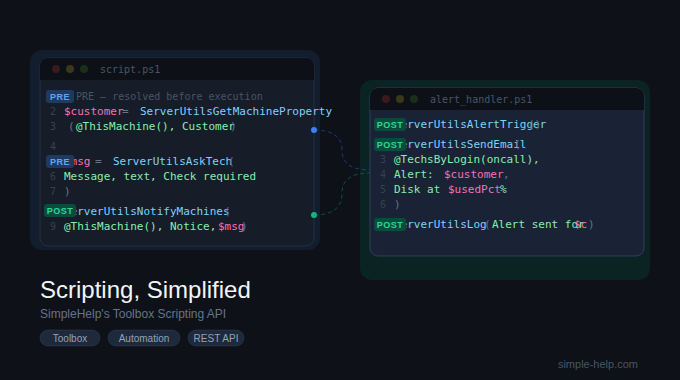
Scripting, Simplified: SimpleHelp's Toolbox API
Most SimpleHelp administrators know they can write Toolbox scripts to run during sessions or via the Access tab. Fewer realise that a set of server-side functions, the Scripting API, can be called directly from within those scripts. Want to directly pull machine performance data? Automate file transfers between your remote machines? Show notification pop-ups to users, or to your Technicians, or to an email address? Conditionally chain Tool actions across different machines? Read on.
This post is a practical introduction to what the Toolbox Scripting API actually does, why it matters in production, and how to use it for problems you have probably already encountered. You can find the user guide here.
Incredibly Powerful, But Not Just For Power Users
With the Scripting API, a Tool script goes from a script that runs on a single machine and produces a single output to a much more versatile and powerful instrument that can:
- Read properties you have stored against machines and use them as inputs
- Write values back to those properties based on what it finds
- Send pop-up notifications to users on remote machines
- Alert specific technicians or send email with attachments
- Pull log files off a machine and push them somewhere central
- Trigger or suppress Alerts based on what the script determines
- Launch further tools on other machines as a follow-on action
- Relocate itself to run the remainder of its script on another remote machine entirely
The practical effect is that you can build workflows that span machines, respond dynamically to what they find, and perform what you need them to all within SimpleHelp in a single Tool run.
Yes, It Even Works With The New Web API Tool Run Calls
SimpleHelp gives you two distinct scripting surfaces:
The Toolbox Scripting API provides a set of embedded functions you write directly into your Toolbox scripts (Batch, PowerShell, Bash). These are OS agnostic, saving you time writing several scripts to get the same data or perform the same actions. They run either before your script executes (PRE functions used to pull in data, download files, or collect input) or after it completes (POST functions used to send notifications, push files, log results, or trigger further actions).
The Web API (v5.1+) is a standard HTTP API you call from external systems to securely get data from and spawn actions directly on your SimpleHelp server to a monitoring platform, a CI/CD pipeline, a custom dashboard or just to a log file on disk. List machines’ availability, fetch monitoring data, manage technician accounts, query session history for billing, or use it to launch Tools.
With great power comes great responsibility: Unless you're very sure about what you're doing, it's OK to have the server API launch Tools, but it's not a great idea from a security standpoint to have the Toolbox API calling the Web API since you don't really want to be passing your API tokens about! As always, our security guide has advice on making sure you're adhering to best practices.
Understanding PRE vs POST
There are two kinds of calls offered by the API:
PRE functions are resolved by the SimpleHelp server before your script is sent to the remote machine. PRE calls include:
- Supply your scripts variables with machine names, groups, WAN IP addresses (even other machines besides the one the Tool's running on)
- Check CPU and memory usage, WiFi signal strength
- Pull, compare or push files from one machine to another, or download from a URL
- Send WOL packets and wait until the target services come online
- Prompt the Technician running the Tool for confirmation or input which can be used for variables in the script
POST functions are embedded in your script. They can reference script variables and can be embedded in your script's conditional structures to control which actions are taken. Some examples:
- Run further Tools, on this machine or another, or even relocate the script to run the rest of it on another machine
- Reset or trigger an Alert, letting you link Toolboxes with another powerful SimpleHelp automation feature. See more about Alerts here
- Create a user-visible popup on the machine with custom content
- Send notifications to Technicians
- Send an email
- Log to a file on the server, the target remote machine or another machine entirely
They can also fetch and set Machine Properties to associate any data you like with your remote machines, and can be used like Tags or to store machine data server-side so it's available even when the machine's offline (software versions, network or physical locations, organisational divisions, anything you like). See the Toolbox Scripting API guide here for the full list of functions on offer.
A Simple Example: Sending a Message To A User When a Disk Space Alert Fires
The problem: You have a Monitoring Alert configured to trigger when a machine's primary disk is 90% full. The basic Alert actions let you send emails or run a command on the machine, but you don't want to have to set up separate Alerts for every OS with appropriate commands, and you want the end user on that machine to see a pop-up message rather than just hope they're checking their email regularly.
The solution: Use ServerUtilsNotifyMachines in a Tool. Add the Run a Tool action to your Alert and you've automated disk space warnings for users.
What the Toolbox API Does Not Do
Write your scripts for you. We have Cyana for that; See our SimpleHelp Dispatch for more information about Cyana and Cyana setup guide for more.
Run automatically on a schedule providing a full end-to-end automated RMM platform. Unless you pair it with our Monitoring Alerts by setting your Tool as a Custom Threshold, then they absolutely can (See our guide here).
Getting Started
If you have never used the Scripting API before, the fastest path is to take a Toolbox script you already use and add a single POST call to it — ServerUtilsLog is a good starting point, since it is harmless and immediately shows you that the API is working.
From there, ServerUtilsNotifyMachines and ServerUtilsSendEmail are the two functions most administrators find immediately useful. Between them, they cover the majority of "I wish this script could tell someone what it found" use cases without any additional infrastructure.
The full function reference is in SimpleHelp's Toolbox Scripting Guide, and the Web API endpoint documentation is at guides.simple-help.com/simplehelp-integration-api-v1.
SimpleHelp is a unified remote support and RMM platform. Learn more at simple-help.com.