How useful Cyana is depends on how well the request is scoped. These are the five prompts your support team may run most often, with the mode, scope and access each needs, the underlying checks, and what to look for in the review before you approve anything.
Kimanni Bramble
Cyana takes a natural-language request, works out which machines it applies to, and turns it into the commands needed to answer it or carry it out. How well that works depends mostly on the request. A well-scoped prompt gives you a narrow, read-only query that's easy to review. A vague one gives you a broad action plan that needs closer scrutiny, and if it's too broad the automated review will flag it.
The prompts below are the ones your support team could use daily.
Fleet Queries (Cyana Command, Read-Only)
These run read-only and are the safest starting point. They're also the best way to build confidence in a new model or a new team member before granting write access.
1. Uptime
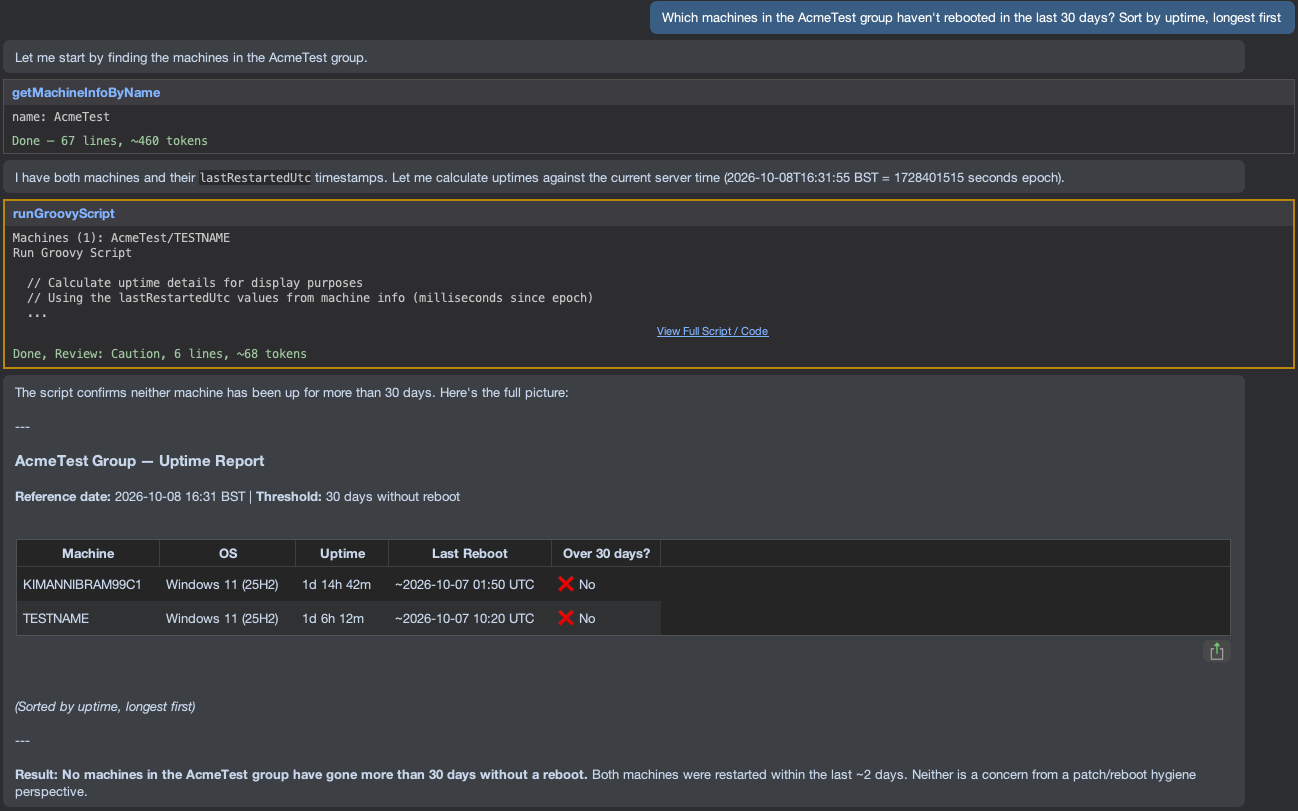
▎ "Which machines in the AcmeTest group haven't rebooted in the last 30 days? Sort by uptime, longest first."
Machines that go weeks without a restart build up updates waiting for a reboot to finish, along with long-running processes and the gradual slowdown users notice before anyone raises a ticket.
It runs in Cyana Command with read-only access. Cyana checks the last boot time on every machine in the group, using the right check for each operating system, and returns one sorted list. Because nothing changes on the endpoints, it's a good first prompt for technicians new to Cyana.
Sorting longest first turns the results into a priority list. A machine that has been up for 31 days just needs a reboot scheduled. One that has been up for 200 days needs investigating: a user who never shuts down, a server deliberately left running, or something blocking the restart. Adjust the 30-day threshold to suit each group's patching requirements.
2. Disk Usage with Attribution
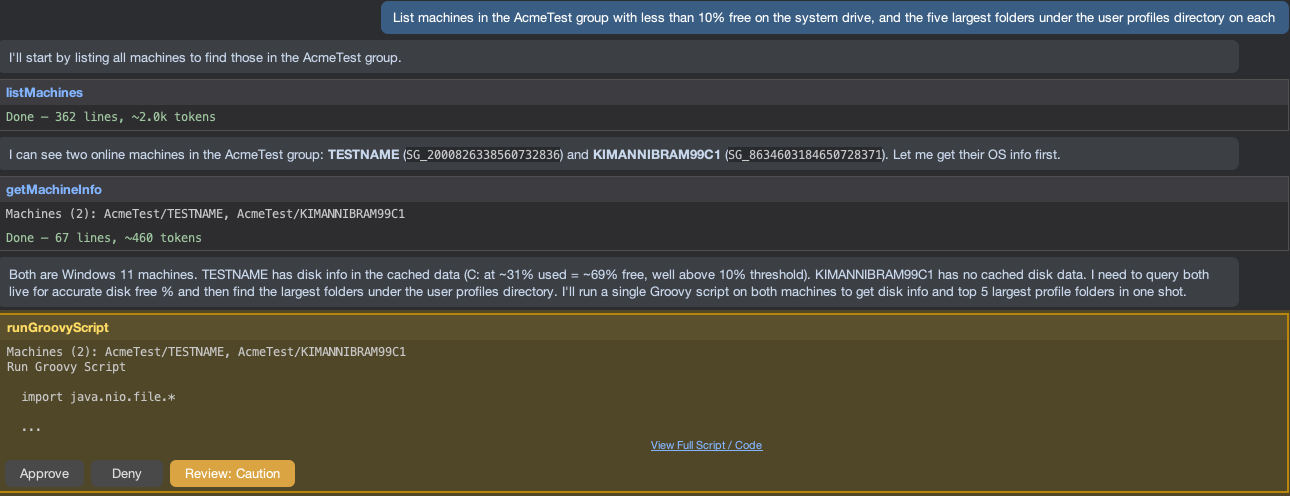
▎ "List machines in the AcmeTest group with less than 10% free on the system drive, and the five largest folders under the user profiles directory on each."
This could be the routine start-of-week check, and the first thing you’d run when a disk space alert fires on one machine in a group. One low-disk machine often means others in the same group are close behind, especially if they share a build image.
This is another read-only query. Cyana filters to machines below the threshold, then measures folder sizes under C:\Users on each. Measuring folder sizes means reading every file, so limiting the path keeps the query fast while still covering where most unexpected growth happens: downloads, synced cloud folders and application caches.
The second half of the prompt is what makes it useful. Instead of a list of full machines, you get the folders responsible on each one, which tells you whether the fix is a cleanup, a conversation with the user or a bigger drive. Machines that also appeared in the uptime check are worth rebooting before any cleanup, as clearing pending updates may recover a good share of the space on its own.
3. Running a Cleanup with Conditions
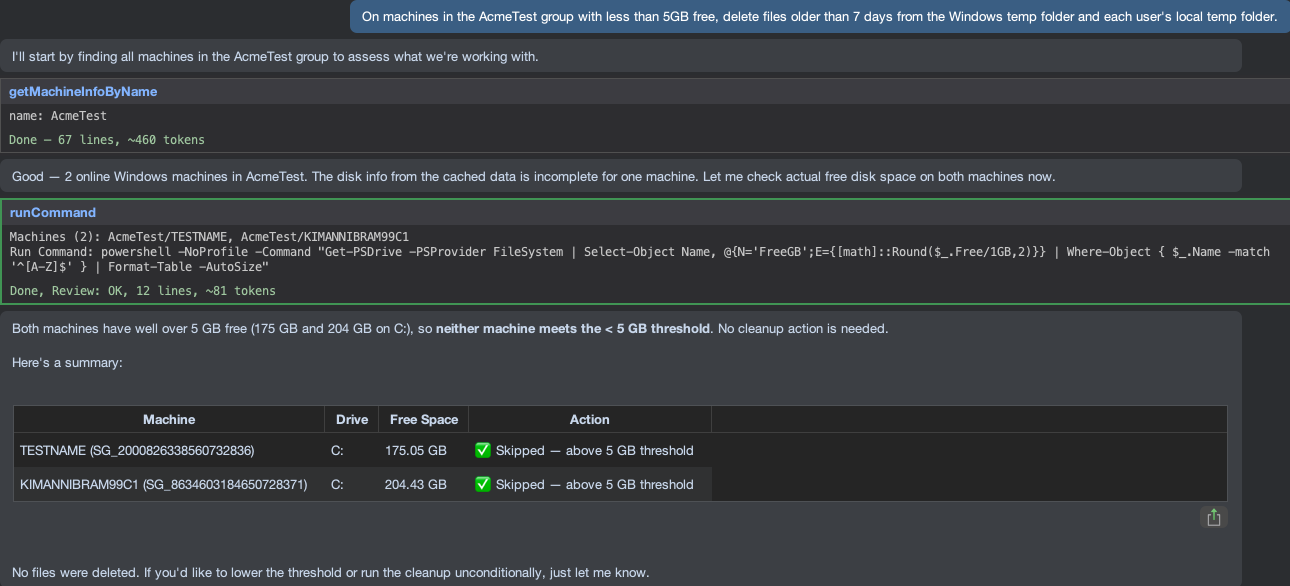
▎ "On machines in the AcmeTest group with less than 5GB free, delete files older than 7 days from the Windows temp folder and each user's local temp folder."
When the disk check points to temp folders, as it often does, this is the next step.
This prompt changes machine state, so it goes through review. Cyana works out which machines match, prepares the cleanup and presents the plan. The secondary review agent rates each action green (low risk), yellow (check the details) or red (potentially destructive or too broad). A red rating halts execution until a technician explicitly confirms, even if that action type is allowed in the permissions menu.
The free-space condition limits the cleanup to machines that need it. The age filter protects files that running installers and applications are still using. Naming both folders explicitly avoids a generic "temp folder" resolving to the system's temp folder when the tool runs in the service context. Before approving, check that each condition appears in the proposed command itself, not just in your request, and that locked files will be skipped rather than causing the run to fail. A yellow rating usually means the plan is broader than you intended.
4. Diagnosing an Application During a Live Session
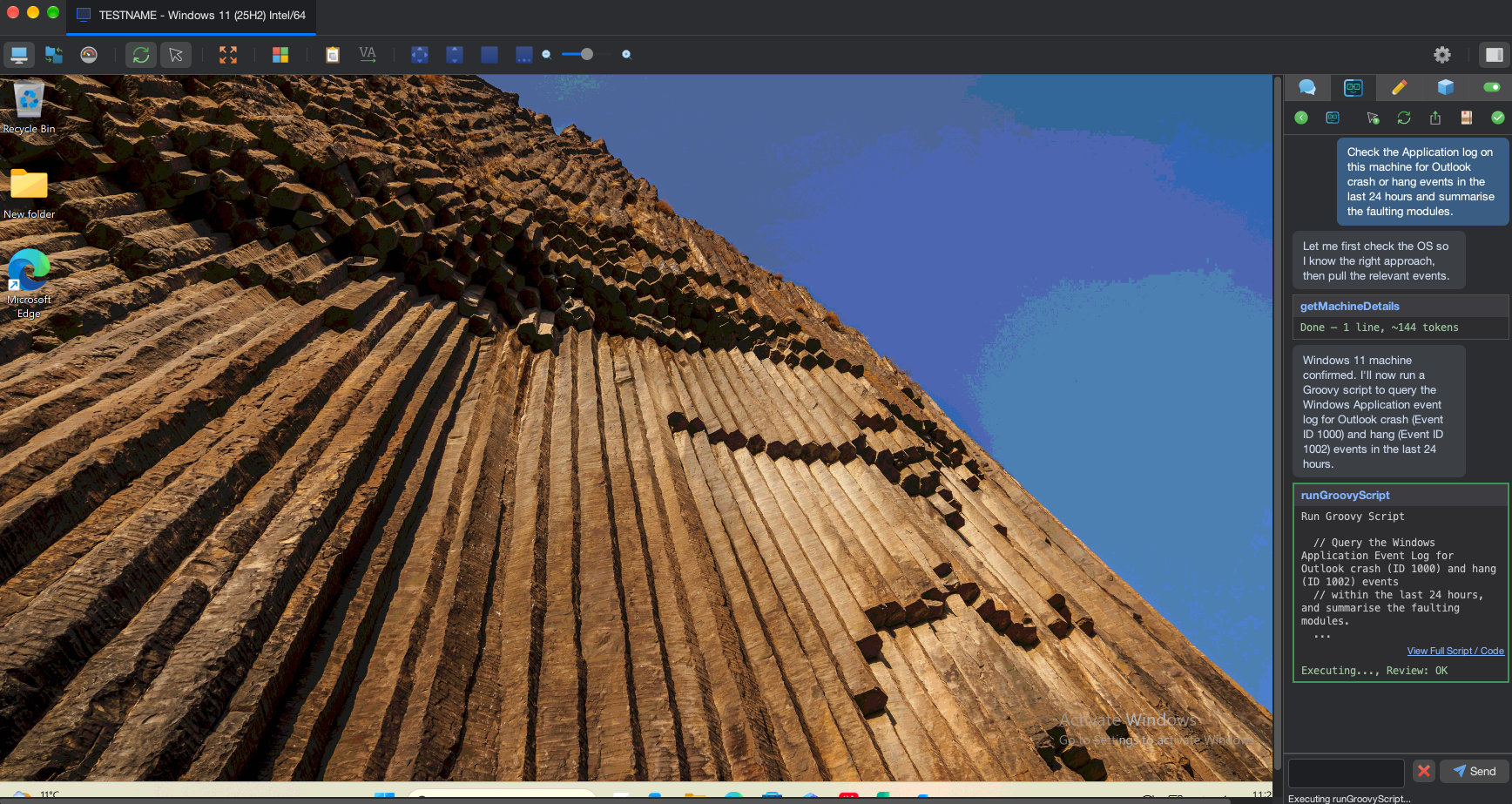
▎ "Check the Application log on this machine for Outlook crash or hang events in the last 24 hours and summarise the faulting modules."
When a user reports that an application keeps crashing or freezing, this is the prompt you could run while you're still on the call. Outlook is the most common example, but the same wording works for any application.
It runs in Cyana In Session, where Cyana only has access to the connected machine, and only when you've granted it. Event logs can contain user data, so if the machine handles regulated data, factor that into your choice of model.
Windows records the faulting module for every crash. For Outlook, that's usually a specific add-in or third-party DLL rather than Outlook itself, which changes the fix from repairing Office to disabling one add-in. Asking for "faulting modules" rather than "errors" gives you the information that leads to a diagnosis instead of everything in the log. While Cyana reads the log, you can keep asking the user what changed, rather than going quiet while you scroll through Event Viewer.
5. Auditing a New Client and Reporting Back
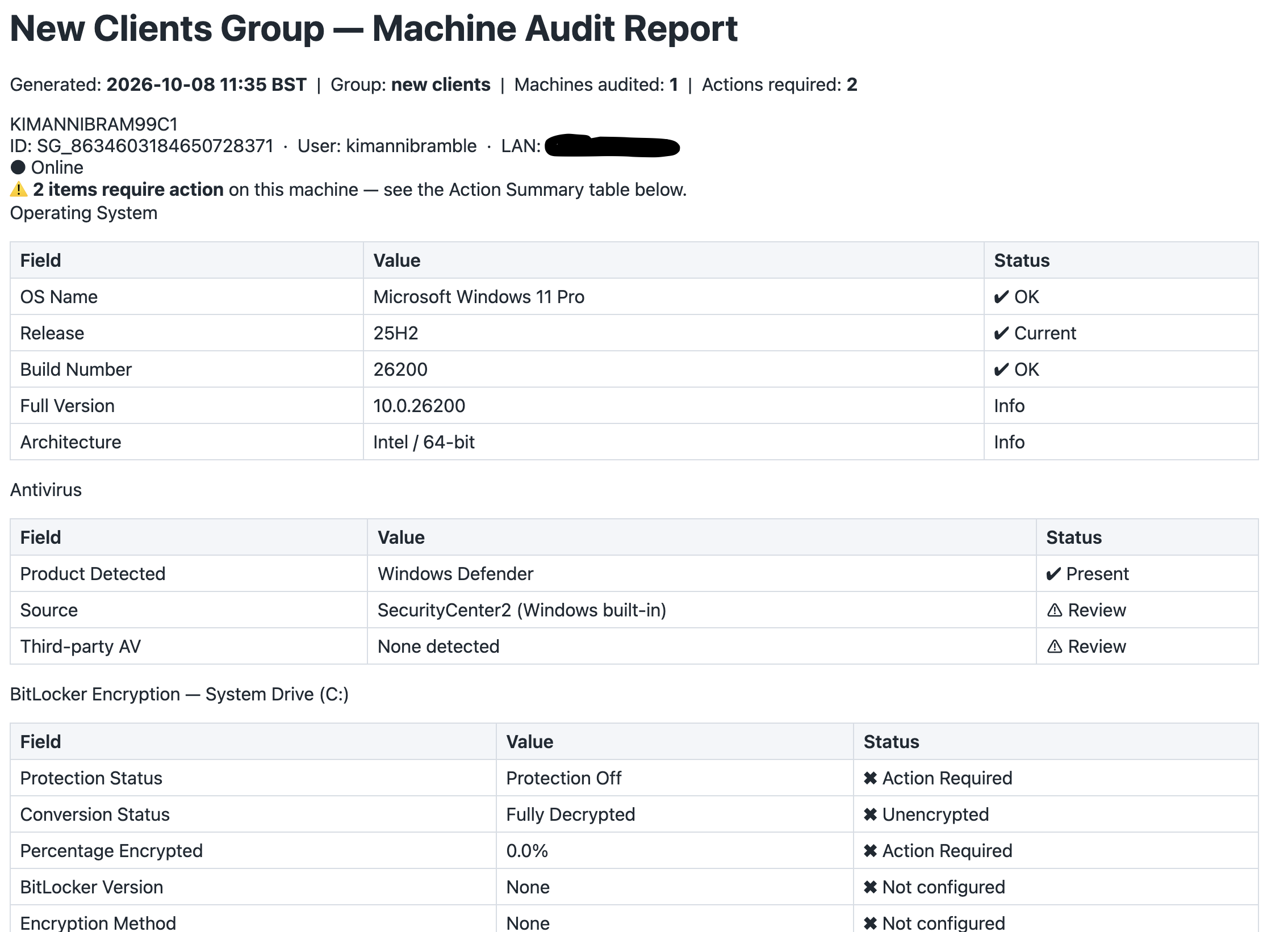
▎ "For every machine in the new client's group, report OS version and build, antivirus product, BitLocker protection status on the system drive, free disk space and installed RAM."
Followed by:
▎ "Generate an HTML report from these results, with a status column flagging anything that needs action."
You could run this pair in the first week of onboarding a new client, as soon as the agents are deployed, and again before contract renewals or quarterly reviews to show what has changed since the start. An onboarding audit used to mean remoting into each machine in turn and copying details into a spreadsheet. Now the inventory is ready in the first week, along with a clear list of out-of-date operating systems, unencrypted drives and under-resourced machines to discuss with the client.
Each attribute answers a question the client should be asking: are we patched, protected and encrypted, and which machines need replacing? The status column puts the items that need action at the top, so the report also serves as a plan of work. Treat any empty value as "not determined" rather than "not protected". Windows reports antivirus and encryption status differently by edition, so a blank field usually means the check couldn't run. Afterwards, store key values as Machine Properties using the Toolbox Scripting API so they're available even when a machine is offline.
From Prompt to Process
The first, second and fourth prompts are investigations, and they'll be different each time you run them. The third and fifth often turn into routine work, and once a prompt becomes part of your weekly routine, it should probably become a Tool or a Monitoring Alert. Using Cyana for Toolboxes can turn a reviewed command into a saved Tool. From there it can run on a schedule as a Custom Threshold, be triggered by an Alert, or be launched through the Web API, with no model involved in each run. Use Cyana to work out and check the steps, then hand the routine version to the automation already built into SimpleHelp.
When rolling Cyana out to a team, start the way we recommend for any evaluation: a small group of experienced technicians, a narrow machine scope, read-only queries first, and the strictest approval settings. The first two prompts here are good first steps. Move on to write actions like the cleanup once the team has confidence in both the model and the review process.
The full Cyana setup guide. If you've built prompts that work well for your environment, share them in the thread on the community forum.
SimpleHelp is a unified remote support and RMM platform, built as a single application since 2007. Now with AI-powered fleet management through Cyana. Learn more at simple-help.com.